
Every application that uses FlowModels authenticates with an API key. It's best to create a separate key for each application and environment, for example one for production and one for your test system. That way you can see usage separately and revoke a single key without touching the others.
Create a key
- Open API keys in the dashboard.
- Click Create key at the top right.
- Choose the Permission, enter a Name and, if needed, set a Monthly limit and the Validity.
- Click Create.
The permission: Use AI or Manage keys
- Use AI: Your application can send messages to AI models and receive responses. This is the right choice in almost all cases.
- Manage keys: For programs that need to create, renew or revoke API keys themselves. A key like this can't send AI requests. It can, however, query credit and usage.
The permission is fixed once the key is created. If you need the other one, create a second key.
Monthly limit
In the Monthly limit field, enter a whole euro amount between 1 and 100,000. The key can then spend at most that much in the current calendar month. Running requests are reserved in advance and counted toward the limit. Once the limit is reached, the API rejects further calls with this key until the month changes or you raise the limit. If you leave the field empty, the key has no limit of its own and only your credit and your team's spending limit apply.
Validity
Under Validity, choose 30 days, 90 days, 365 days or No expiry. After it expires, every call with this key is rejected. You can change the expiry date at any time later, even if the key has already expired.
Copy the key
After creating it, the Key created window appears with the full value. Copy it now with the copy icon and store it safely, for example in your application's environment configuration. As soon as you click Understood, the key can't be shown again.
Treat the key like a password. It doesn't belong in source code that runs in the browser or in public repositories.
The key list
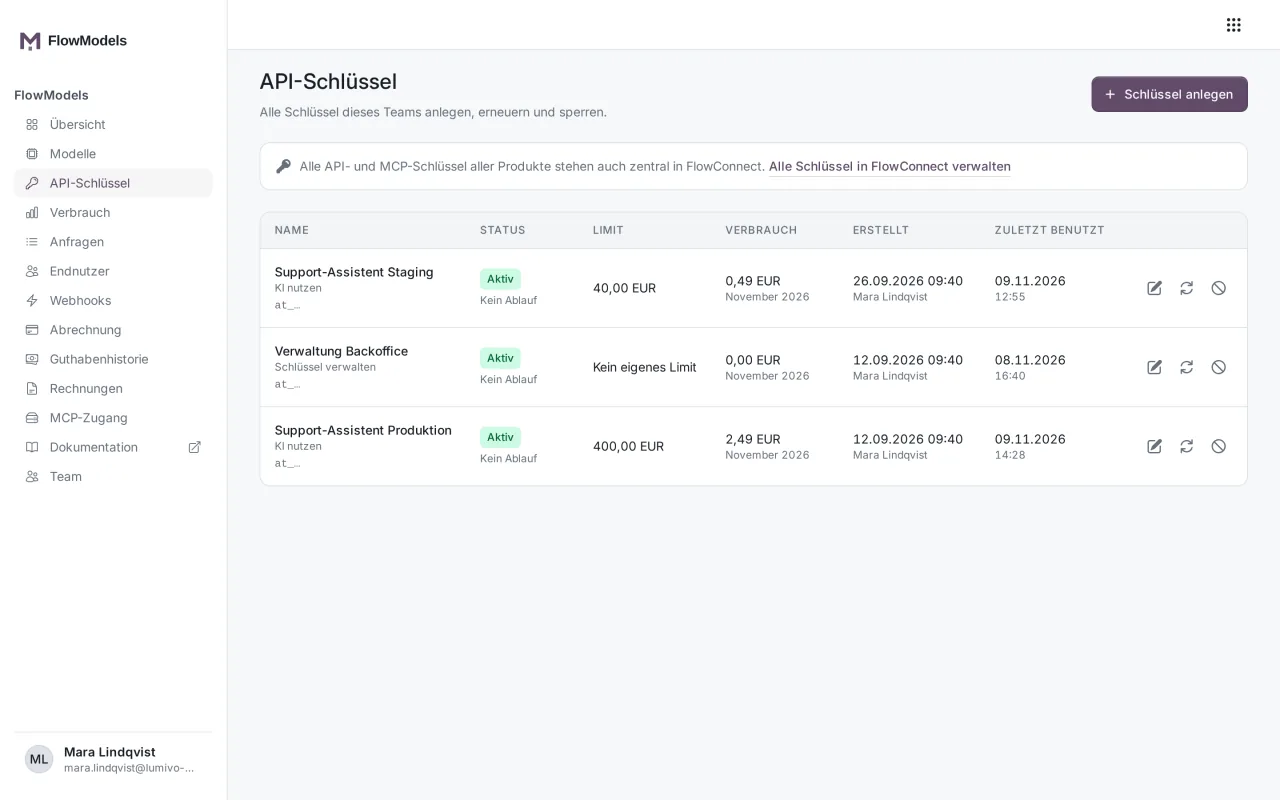
The list shows each key's Status (Active, Expires soon, Being renewed, Expired or Revoked), the Limit, the Usage in the current month, when and by whom it was Created, and when it was Last used. Expires soon appears if the expiry date falls within the next 14 days.
Good to know
- Owners and people who manage the team see all of the team's keys. Everyone else sees only the keys they created themselves.
- If someone other than the owner creates a key, the owner receives an email. After all, the owner pays for whatever the key uses.
- Edit, renew or revoke API keys explains editing, renewing and revoking.
- FlowModels keys are separate from the API tokens for FlowSuite integrations. An existing FlowSuite token doesn't become a FlowModels key and isn't billed against your API credit.