
If your application serves many people, you want to keep usage, files and memories separate per person. That's what end users are for: your application sends its own identifier with every request, and FlowModels assigns everything to that identifier. Under End users, you can see which end users exist and what they've used, and you can delete their data completely if needed.
How an end user comes into being
Your application sends its own stable identifier in the external_identifier field, for example your customer number customer-1042. Even a purely numeric identifier is sent as a string. On the first call with a new identifier, FlowModels automatically creates the end user. Alternatively, your application can create it beforehand via POST /v1/end-users.
Don't use email addresses or names as identifiers. Use a neutral ID from your system instead. That way, personal data stays with you.
The end-user list
Open End users in the dashboard. For each end user, you can see:
- Identifier: your own identifier, and below it the public ID the API assigned to this end user
- Created: when the end user first appeared
- Calls and Cost in the current month
- Files and Memories stored for this end user
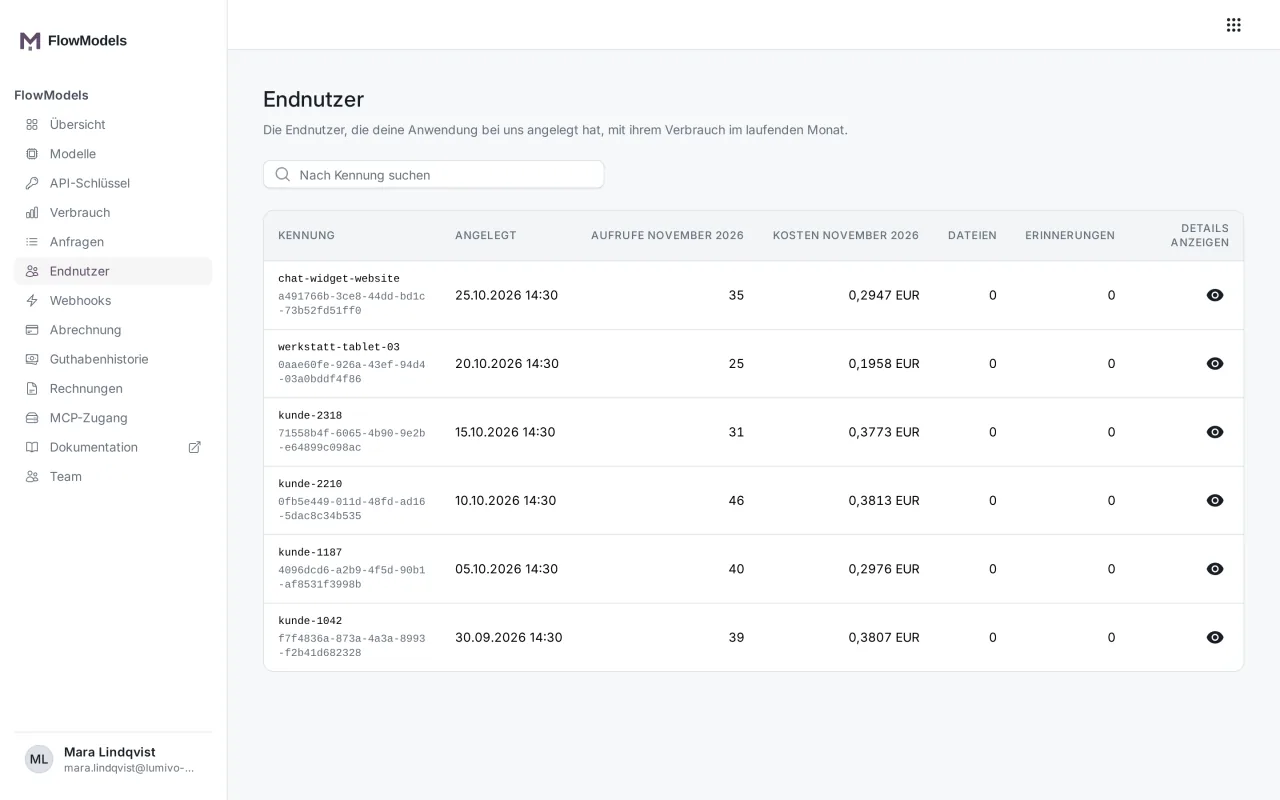
Search by identifier quickly finds a specific end user. You can analyze an end user's usage over a longer period under Usage with the All end users filter.
End-user details
Click Show details on the right of the row. The window shows the uploaded Files with name, size and date, previous Erasure runs and the Delete end user section.
Delete an end user
If a person requests the deletion of their data or closes their account in your application, delete them here:
- Open the end user's details.
- In the Delete end user section, type the end user's identifier exactly as shown at the top to confirm.
- Click Delete end user.
We then delete all data assigned to this end user, for example files and memories. Billing-relevant usage rows are kept in pseudonymized form so your billing stays correct. This can't be undone.
The deletion runs in the background. Under Erasure runs, you can see the progress with Started, Status, Reason, Open objects and Finished. Possible statuses are Created, Running, Completed, Partially completed and Failed. A completed run removes the end user from the list, but the proof of the deletion stays visible.
If something goes wrong
- "The identifier you typed does not match.": Pay attention to upper and lower case, hyphens and underscores.
- No end user yet: The list only fills up once your application sends requests with an end-user identifier. Requests without an identifier aren't assigned to any end user.
- Partially completed or Failed: Some of the data couldn't be removed yet. In this case, contact support and provide the end user's identifier.