
As the team owner, you have FlowModels automatically. Your colleagues only see the area once you enable it for them. You do this directly in FlowModels on the Team page, without touching any of a person's other rights.
Who has access to FlowModels?
- the team's Owner, always
- Co-owners, even if they were made co-owner only for FlowModels
- Members who were explicitly granted FlowModels
Anyone without access lands on the No access to FlowModels page when opening the area, with a note to contact the owner so they can enable it.
Open the Team page
Open Team in the dashboard. You can see it if you manage the team or are allowed to manage FlowModels. The FlowModels team page lists everyone with access, their Role and whether they may Manage product. Below that are open invitations.
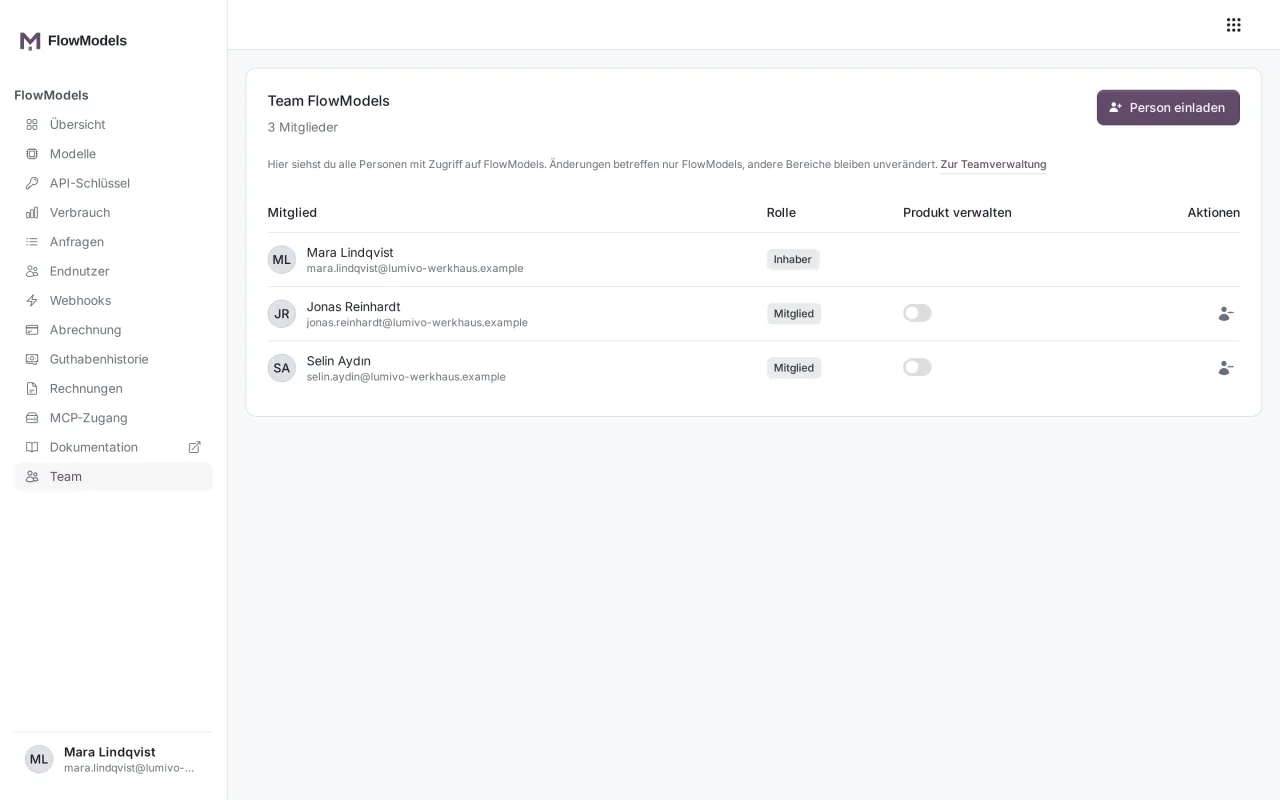
Enable or invite a person
- Click Invite person.
- In the People field, enter a name or an email address. The field suggests team members directly. Separate several addresses with a comma or line break.
- In the Invite to FlowModels dialog, click Send invitation.
People who are already on your team get access immediately. New addresses receive an invitation that applies only to FlowModels. Invitations and invitation links explains how such invitations work.
What does Manage product mean?
The Manage product switch gives a person the Product admin role for FlowModels. They can then bring other people into FlowModels themselves. Only someone who manages the whole team can set the switch. You'll find an overview of all roles in Members and roles.
Remove access again
In the person's row, click the Remove access to FlowModels icon and confirm the question Remove access to FlowModels?. The person loses only their access to FlowModels, all other areas remain.
A few cases are protected:
- The team owner always keeps access.
- Only someone from team management can remove a person with the product admin role.
- If a person has full access, the owner must first revoke it in team management.
Which keys does a member see?
Owners and people who manage the team see all of the team's keys under API keys. Everyone else sees only the keys they created themselves. If someone other than the owner creates a key, the owner receives an email, because the usage is charged to the shared credit.
When a member leaves the team, you should check which keys they created, see Members and roles.
Good to know
- Who receives the warning emails for your credit and usage thresholds depends on the people on this page, see Set up a spending limit and warning thresholds.
- You control all of a member's permissions across all areas in team management, see Assign product rights.