
In prepaid mode, you pay for each model call from your API credit. New teams start with €0, so you add credit before the first call. To keep the credit from running out during operation, you can also turn on automatic top-up.
Credit, Reserved and Available
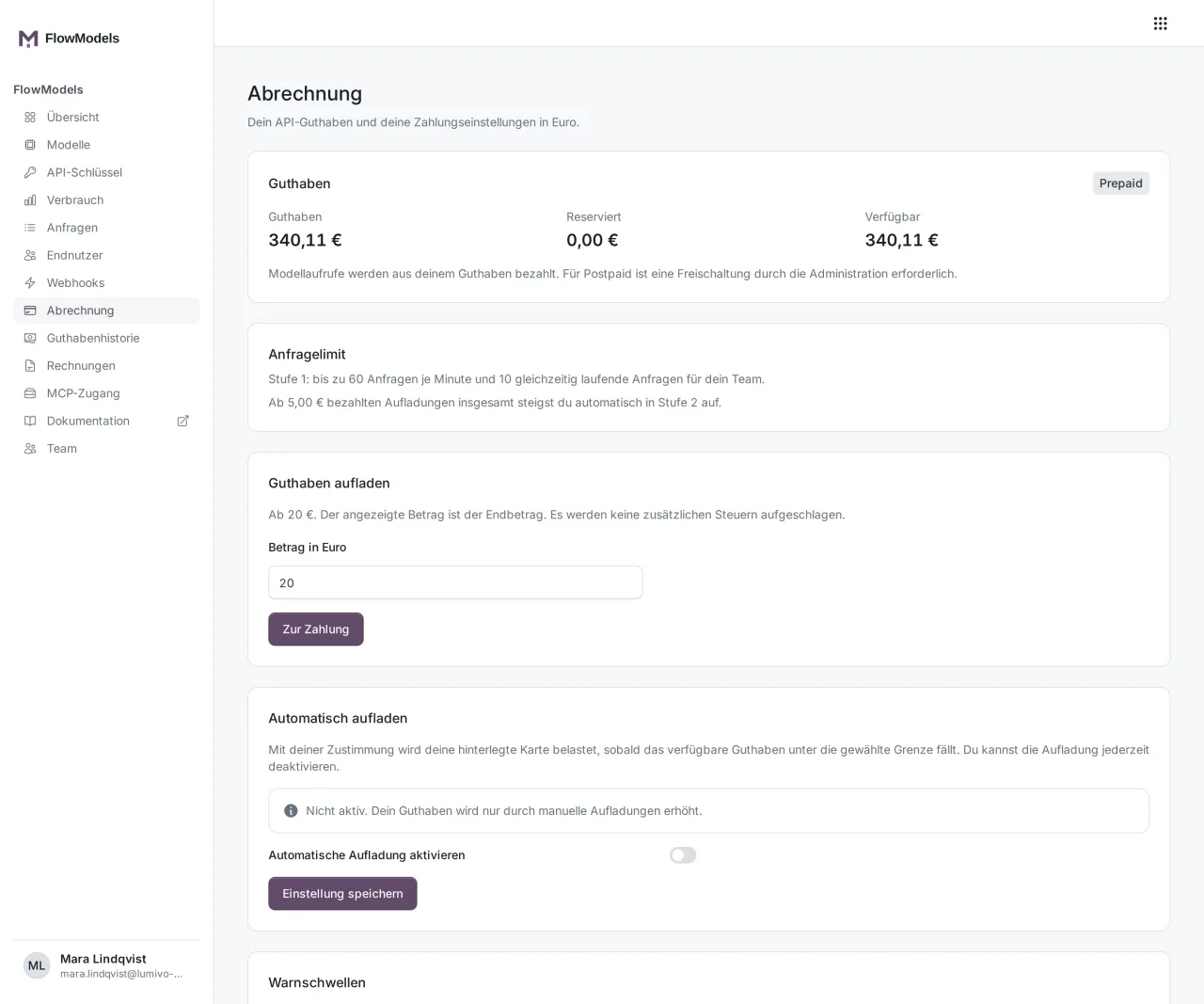
Open Billing in the dashboard. At the very top, you see three amounts:
- Credit: everything you've topped up, minus billed usage.
- Reserved: amounts set aside for calls that are currently running. Before each billable call, we reserve an estimated amount. When the call is finished, the actual usage is billed and the reservation is released.
- Available: Credit minus Reserved. Only this amount is available for new calls.
Add credit
FlowModels is aimed exclusively at businesses and self-employed professionals. That's why you confirm before every top-up that you use FlowModels for commercial or independent professional purposes.
- In the Add credit box, enter the desired amount under Amount in euro. The minimum is €20, with at most two decimal places.
- Tick the box "I confirm that I use FlowModels exclusively for commercial or independent professional purposes (entrepreneur within the meaning of § 14 BGB, German Civil Code) and accept the terms." Without the tick, no top-up starts.
- Click Top up with obligation to pay.
- You land on the payment page for the corresponding invoice and pay there.
We store your confirmation with the top-up. In individual cases we ask you for proof, such as your VAT ID or details of your business.
As soon as the payment is booked, the amount is available as credit. The amount shown is the final amount, no additional taxes are added. You'll then find the invoice under Invoices and the credit entry under Credit history, see FlowModels invoices and credit history.
By the way, paid top-ups also count toward your request limit: above certain totals, your team automatically moves up to a higher tier. More on this in Request limit: how the tiers work.
Automatic top-up
With automatic top-up, we charge your stored card as soon as the available credit falls below a limit you set yourself. It's off by default.
- First store a card. To do this, click Store a new card in the Payment methods box and follow the card setup.
- In the Automatic top-up box, turn on the Enable automatic top-up switch.
- Under Top up below this credit (euro), enter the limit, at least €5.
- Under Top-up amount (euro), enter how much is added each time, at least €20.
- Under Card, select the stored card. If you see the Load stored cards button instead, click it first.
- Tick the box to confirm that you use FlowModels exclusively for commercial or independent professional purposes. You give this confirmation when switching it on; the automatic top-ups then run without a new confirmation. If someone else on your team saves the settings later, that person confirms for themselves.
- Save with Activate automatic top-up with obligation to pay.
Above the switch, you can always see the current state, for example "Active: we add €25.00 as soon as your available credit falls below €10.00." To turn it off, flip the switch and save with Save setting.
If something goes wrong
- Automatic top-up was switched off: This happens if the card can no longer be used, the charge was declined several times or your consent is no longer in place. The reason is shown in the yellow notice. Check the card, store a new one if needed and click Reactivate with obligation to pay. If you turned on automatic top-up before the business confirmation existed, the page asks for it the next time you save.
- No card is stored yet: Automatic top-up needs a card. A bank transfer isn't enough for this.
- Removing a card: This is deliberately not possible here, so that no card disappears that is still needed for automatic top-up. Support will remove a card on request.
- Monthly limits stay in place: A top-up changes neither a key's limit nor your team's spending limit. If one of them is reached, the only options are raising the limit or waiting for the month to change.