
In the Playground, you try the FlowModels models right in your browser, without a line of code and without an API key. That way you quickly find out which model fits your task and what a call costs before you build the API into your application.
Open the Playground
Open the Playground in the dashboard. It has five tabs:
| Tab | What you do there |
|---|---|
| Chat | Write with a chat model |
| Images | Generate images or edit a template, see Generate and edit images |
| Videos | Generate videos from text or a start image, see Generate videos |
| Audio | Turn a recording into text |
| Decisions | Ask questions about a text and get typed answers |
Each tab only offers the models that are released for your team and have a price. Everyone with access to FlowModels sees the Playground, see Give colleagues access to FlowModels.
How billing works
You don't choose a key in the Playground. Billing runs through your team's FlowModels credit, with the same prices, limits and suspensions as the API. If the credit isn't sufficient or the monthly limit is reached, the Playground shows a notice with a link to Billing, and nothing is charged.
In Usage and Requests, your calls appear as "Playground · your name". That way every team member sees who tried what. This entry doesn't show up in your list of API keys, and you can neither edit nor revoke it.
Chat
In the Chat tab, you write with a chat model, much like in a chat window.
- Choose the Model on the left. Below it, you see the input and output prices per 1M tokens.
- Optionally enter a System instruction (optional), for example "Answer briefly and in English."
- Set the Maximum answer length in tokens. The default is 1,024, and up to 4,096 is possible, or the model's ceiling if it is lower. Some models need a minimum length; the hint below the field names it then.
- If the model takes a Temperature (optional), you can set it between 0 and 2. Left empty, the model's default applies.
- Write your Message on the right and click Send.
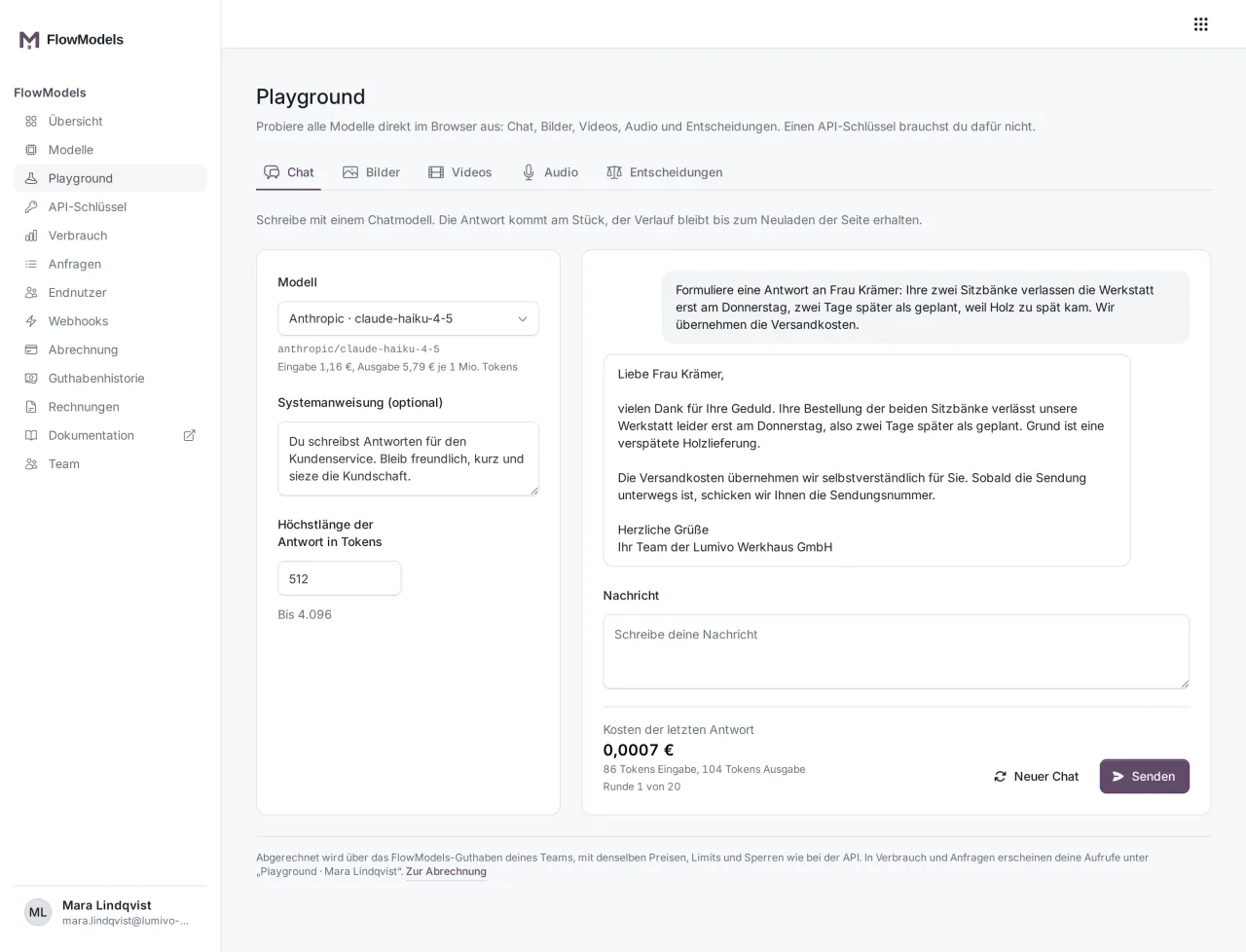
The answer arrives in one piece, not word by word. Below the conversation, Cost of the last answer shows the tokens used for input and output. Billing follows the tokens actually used; beforehand, we reserve at most the amount for the chosen answer length.
The conversation is sent along with every new message and therefore counts towards the input tokens. It only stays until you reload the page and isn't saved. New chat starts over, and your settings stay.
Audio
In the Audio tab, you turn a recording into text.
- Choose the Model. Price per minute shows what your selection costs.
- Leave Language on Detect automatically or choose the language code of your recording, for example
en. - Drop the file into the Recording field or select it. MP3, WAV, FLAC, OGG, M4A, MP4 and WebM up to 24 MB and ten minutes are allowed.
- If the model supports Timestamps, you can switch them on.
- Click Transcribe.
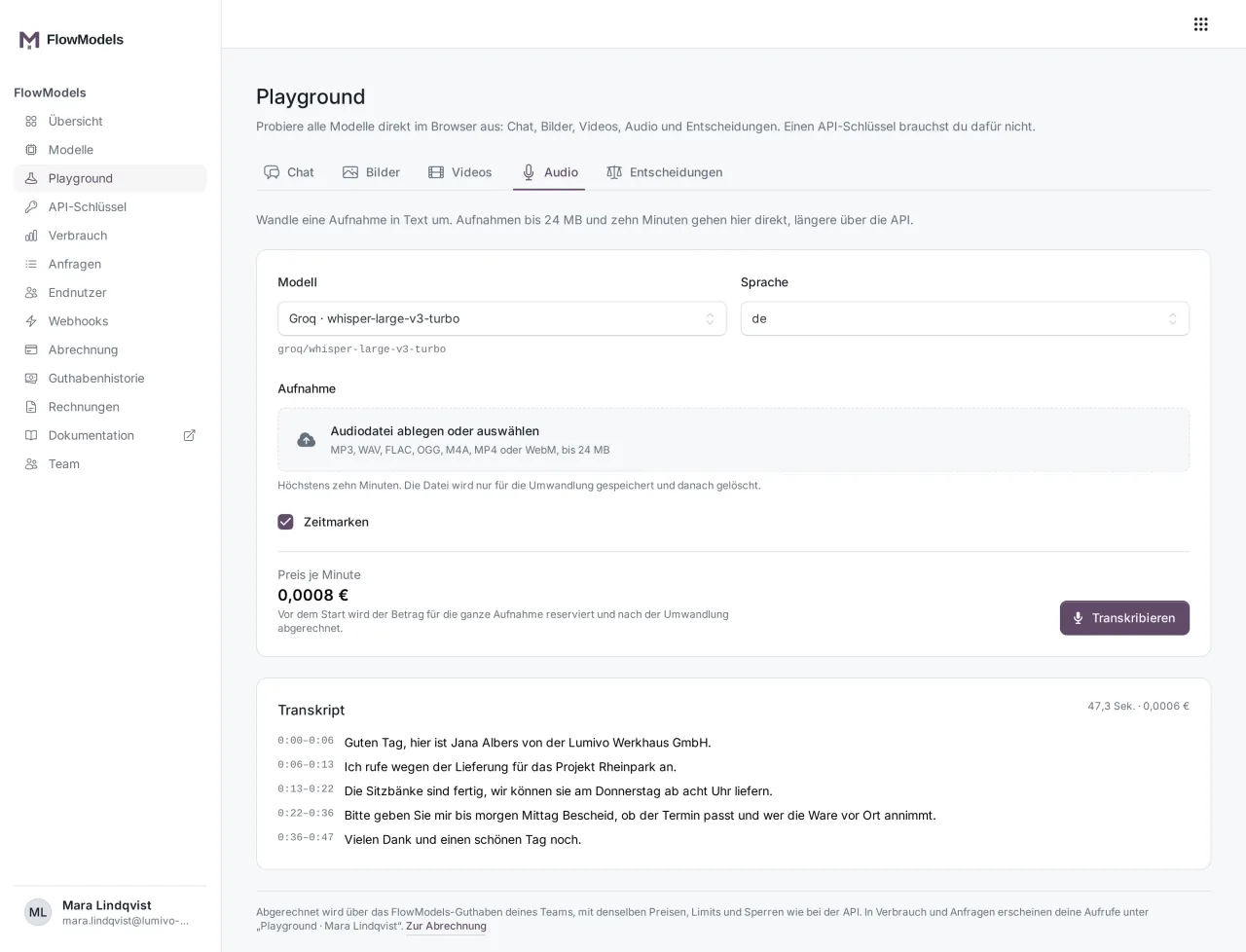
The Transcript appears below the form, with the length of the recording in seconds and the cost. With timestamps, it is split into sections with start and end. Before the start, we reserve the amount for the whole recording and bill it after the transcription.
We store your file only for the transcription and delete it afterwards. The transcript only stays visible until you reload the page, so copy it if you need it. You process longer recordings of up to eight hours in the background through the API, see Transcribe audio files.
Decisions
In the Decisions tab, you ask questions about a text, for example a customer request, and get typed answers with probabilities. This is useful, for example, to sort requests automatically.
- Choose the Model.
- Paste the text in question into the Text field.
- Choose the question type in the Question 1 field:
- Yes or no: The answer is the probability of yes.
- Choice: The model picks one of your Choices.
- Score: The model places the text on your Levels, from low to high.
- Write the Question. For choice and score, enter 2 to 10 entries below it, one per line.
- Add question lets you ask further questions about the same text.
- Click Answer questions.
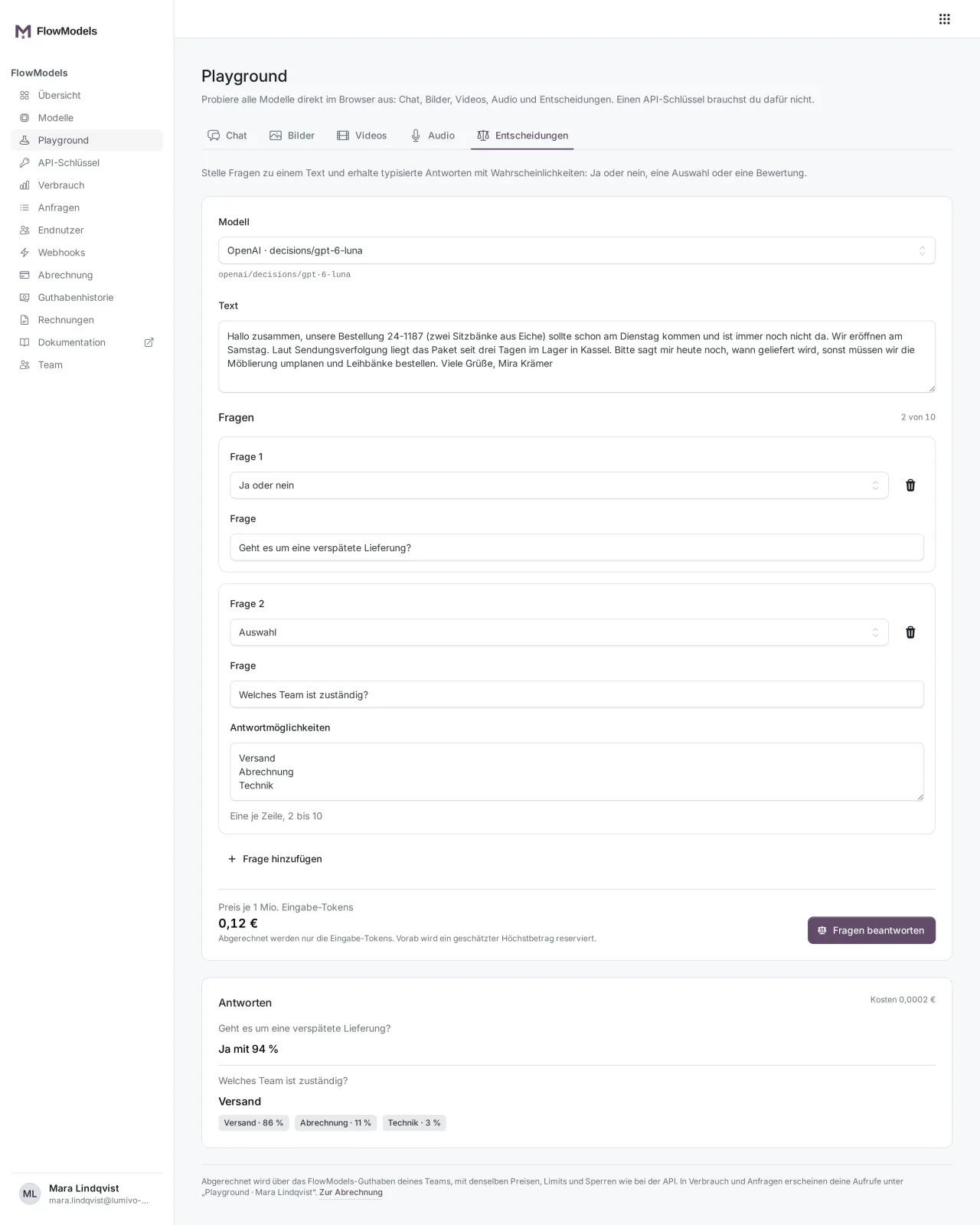
Answers lists every question with its answer. For choice and score, you also see how the probability is spread across the entries. Only input tokens are billed; the form shows the price per 1M input tokens before the start. The cost of the call is shown next to the Answers heading.
Limits
- Calls per minute: 20 each for chat, audio and decisions, 10 for images and 3 for videos, per person. After that, the Playground tells you how many seconds to wait.
- Concurrent requests: Every call takes one of your team's concurrent request slots, just like with the API, see Request limit: how the tiers work.
- Chat: at most 20 rounds and 16,000 characters for the whole conversation including the new message, the system instruction up to 4,000 characters. Once the conversation is full, start a new chat.
- Audio: one recording per call, up to 24 MB and ten minutes.
- Decisions: up to 10 questions per call, unless the model allows fewer. The text may have at most 16,000 characters, a question 4,000 characters and an entry 128 characters. The Playground doesn't accept images here.
- Images and videos: The limits are in the articles on images and videos.
Where you see the costs
The Playground shows the cost right after every call. Later, you find it here:
- Under Usage: choose the entry "Playground · your name" in the All keys filter, see Analyze usage and export it as CSV.
- Under Requests, every single call with its status and cost, see Check individual requests in the request log.
If something doesn't work
- Notice about the credit or monthly limit: Add credit or adjust the limit under Billing, see Add credit and top up automatically.
- "You started a lot of calls in a short time": Wait for the seconds shown.
- "Your team has too many requests running at the same time": Wait until another request has finished. Nothing was reserved.
- "Your team's FlowModels access is suspended": Contact the owner of your team.
- No model to choose from: No model is released for this tab right now. Please try again later.